Commenting on Activities
You can use activity comments to discuss activities with other members of your team, and to record updates, changes, and decisions (such as approvals) on activities. Because comments are visible to all users who have access to an activity, they're a great way to provide insight to all stakeholders as you plan, approve, and execute activities.
Activity comments are available on activities of all types. They are displayed in their own Comments panel alongside an activity's Details Panel. With activity comments, you can:
-
Add comments to an activity that are visible to all other users who have view access to that activity
-
Organize related comments into conversations with comment threads
-
@mention any user to notify them about your comment
-
Use emoji in comment text, or as reactions to comments
Before you begin
To follow the instructions in this section:
-
You must have access to the Activities section in your Uptempo instance.
-
You must have at least view access to the Details Panel of the activity on which you want to view or add comments.
View an activity's comments
If you have at least view access to an activity, you can access that activity's comments at any time from its Details Panel.
To view an activity's comments, follow these steps:
-
In the Activities section of Uptempo, find the activity whose comments you want to view. Click on it to open its Details Panel.
-
You can do this in both the Timeline and Summary display modes.
-
-
In the activity's Details Panel, click
 Open Comments.
The Comments panel opens, displaying any existing comments on the activity.
Add a comment to an activity
You can add comments to any activity to which you have at least view access.
To add a comment to an activity, follow these steps:
-
Click
Open Comments in the Details Panel of the activity where you want to add a comment.The Comments panel opens.
Note
If an activity has existing comments,
Open Comments displays a counter badge showing the number of comments. The counter badge is colored purple if you have unread notifications about any of the comments on the activity.
-
To add a new comment, type your comment into the Write a comment as... field, then click
 Add Comment (or press the Enter key) to publish your comment: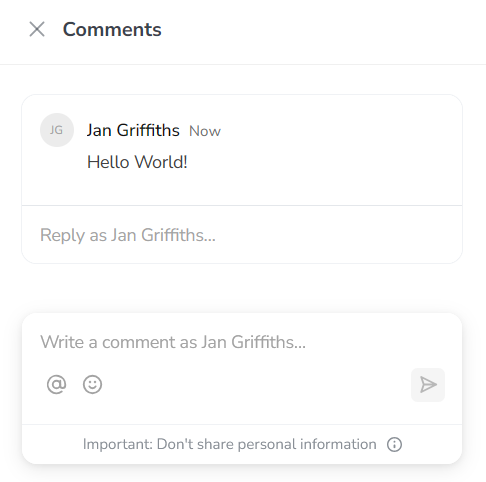
-
Your comment is added to the activity's Comments panel.
Tips
-
Thread your comments: Type your comment into the the Reply as... field on any existing comment to start or continue a thread. Threads keep related comments together, making conversations easier to follow.
-
Mention someone: Type "@" followed by another user's name to mention them. When you mention someone, they'll be notified of your comment in their notification area.
-
Use emoji: While writing a comment, click Add emoji to open the emoji keyboard. You can also hold the pointer over a comment and click Add reaction to add an emoji reaction to that comment.
-
Share comments: After you've added a comment, you can copy a link to it to share the comment (and its thread) with someone else. To do that, hold the pointer over the comment and click
 Copy link to copy the link to the clipboard.
Edit and delete comments
If you need to make changes to a comment you added previously, or if you want to delete a comment, you can do so at any time.
To edit or delete one of your comments, follow these steps:
-
Click
Open Comments in the Details Panel of the activity where you want to edit or delete a comment.The Comments panel opens.
-
Hold the pointer over the comment you want to edit or delete, and click ... More:
-
To edit the comment: Click Edit comment, then make your changes in the comment field. Click
 Save (or press the Enter key) to save your changes.
 -
To delete the comment: Click Delete comment. The comment is deleted immediately.
-
Managing Comment Notifications
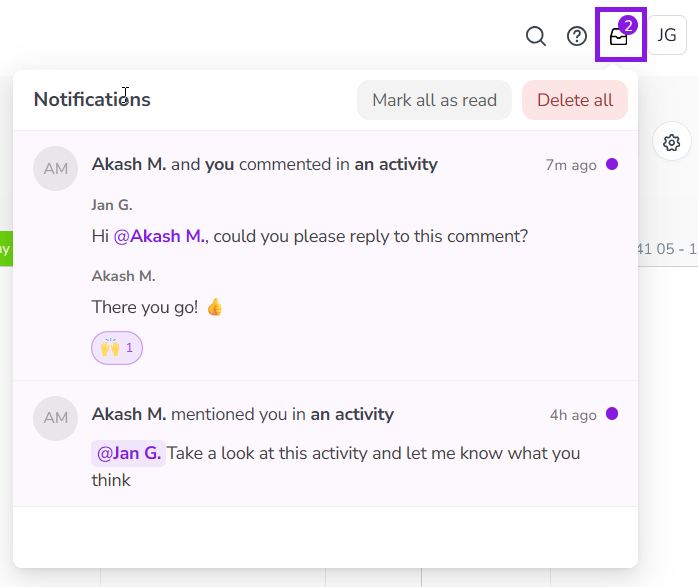
If someone @mentions you on a comment, or replies to a comment thread that you're part of, you'll receive a notification:
-
Notifications are displayed in the in the top right of Uptempo, and a counter badge is displayed if you have unread notifications. Click on
 Notifications to view your comment notifications: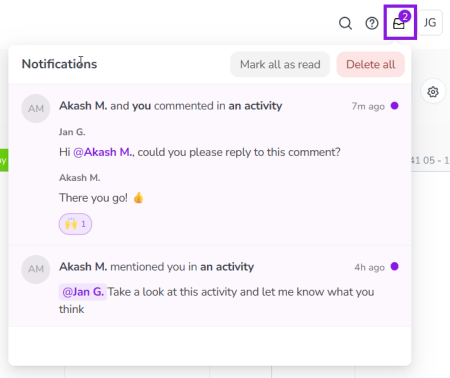
-
Click on a notification to go directly to the Comments panel on the relevant activity.
-
Hold the pointer over a notification and click ... More to:
-
Mark the notification as read
-
Unsubscribe from further notifications about the comment thread
-
Delete the notification
-